

Payment Links is a new feature! If you have any suggestions to help us improve the feature, please share with us via this survey!
Overview
A Payment Link is a shareable URL that sends a customer to a KOMOJU hosted checkout page. You create a link in the Merchant Dashboard and copy its unique URL, then share it through any channel: your website, social media, email, or text message. When the customer opens the link, they complete checkout on the Hosted Page in a few steps.
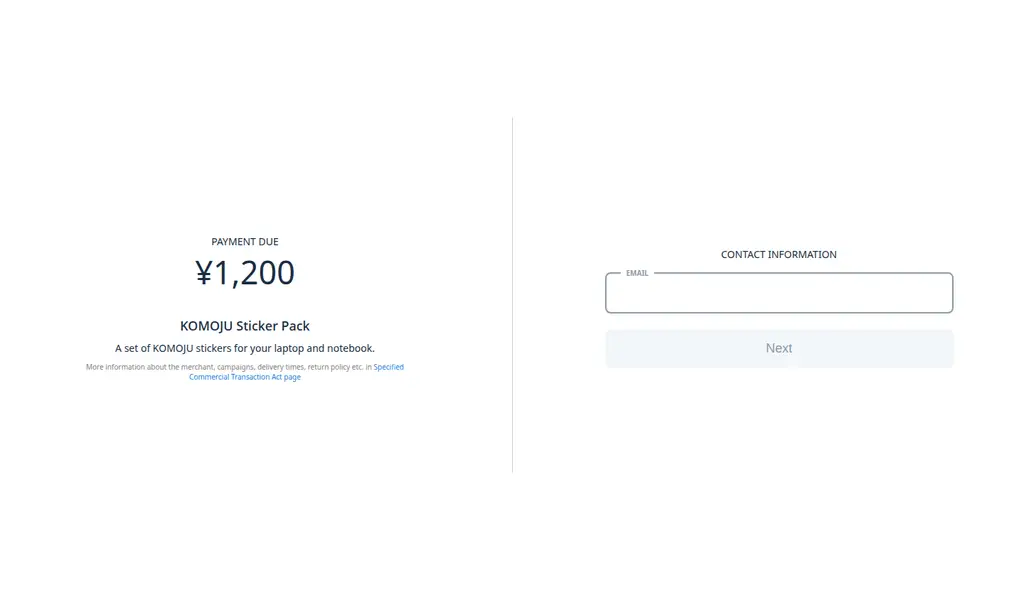
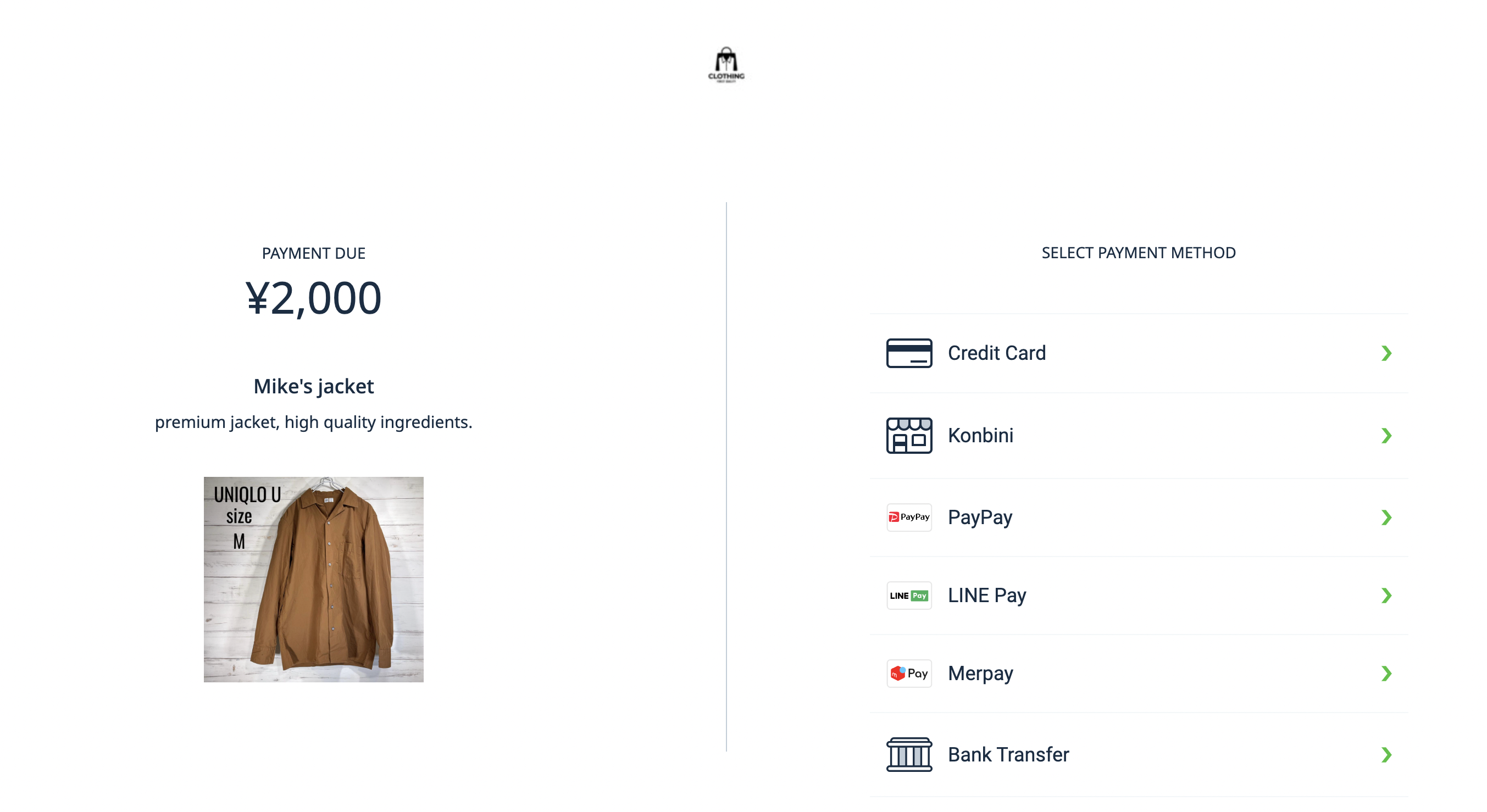
The checkout shows the item, the purchase amount, and a field where the customer enters their contact information. A separate link opens the Specified Commercial Transaction Act page.
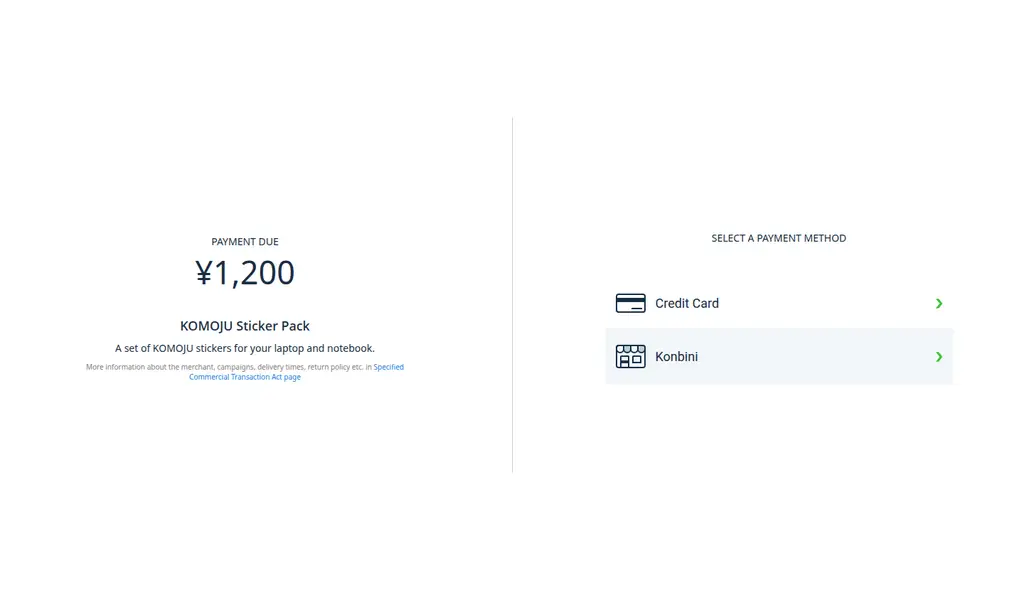
The customer selects a payment method from the options available for the link.
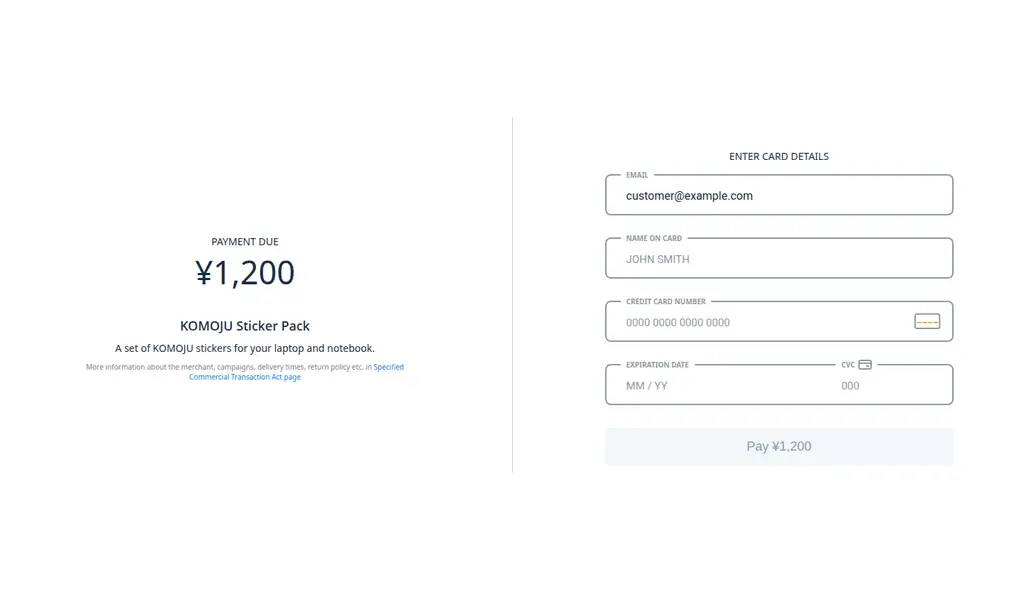
The customer enters the details required for the selected method and confirms payment with the pay button.
1. (recommended) Customize the checkout page for Payment Links
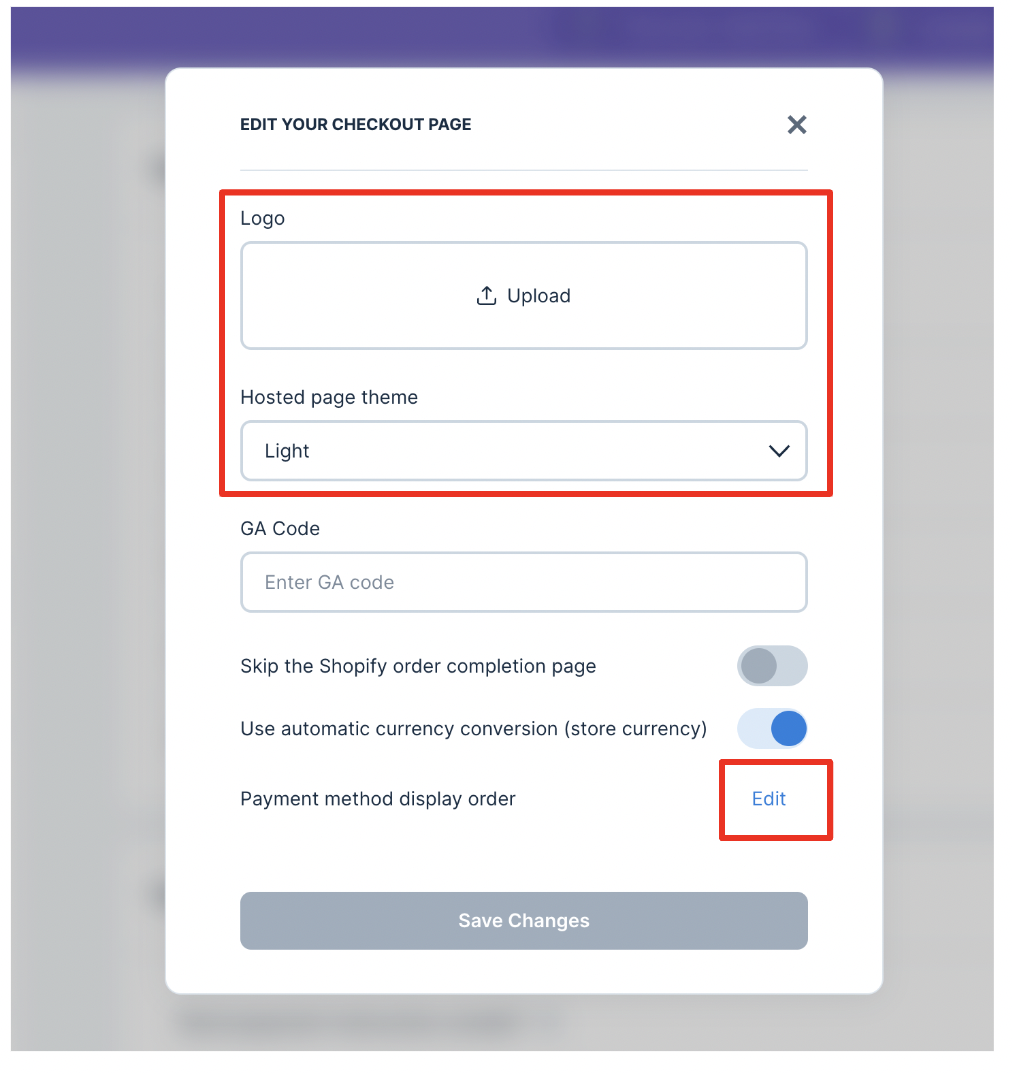
Since your customers will be directed to KOMOJU's Hosted Page to complete the checkout after clicking your Payment Link, our system empowers you to customize the theme of the Hosted Page in order to provide a holistic customer experience.
Recommended Hosted Page customizations:
- Upload your logo
- Set up the theme (Light or Dark)
- Adjust the payment method display order based on the preference of the majority of your customers
How to access customization settings:
- Access KOMOJU Merchant Dashboard
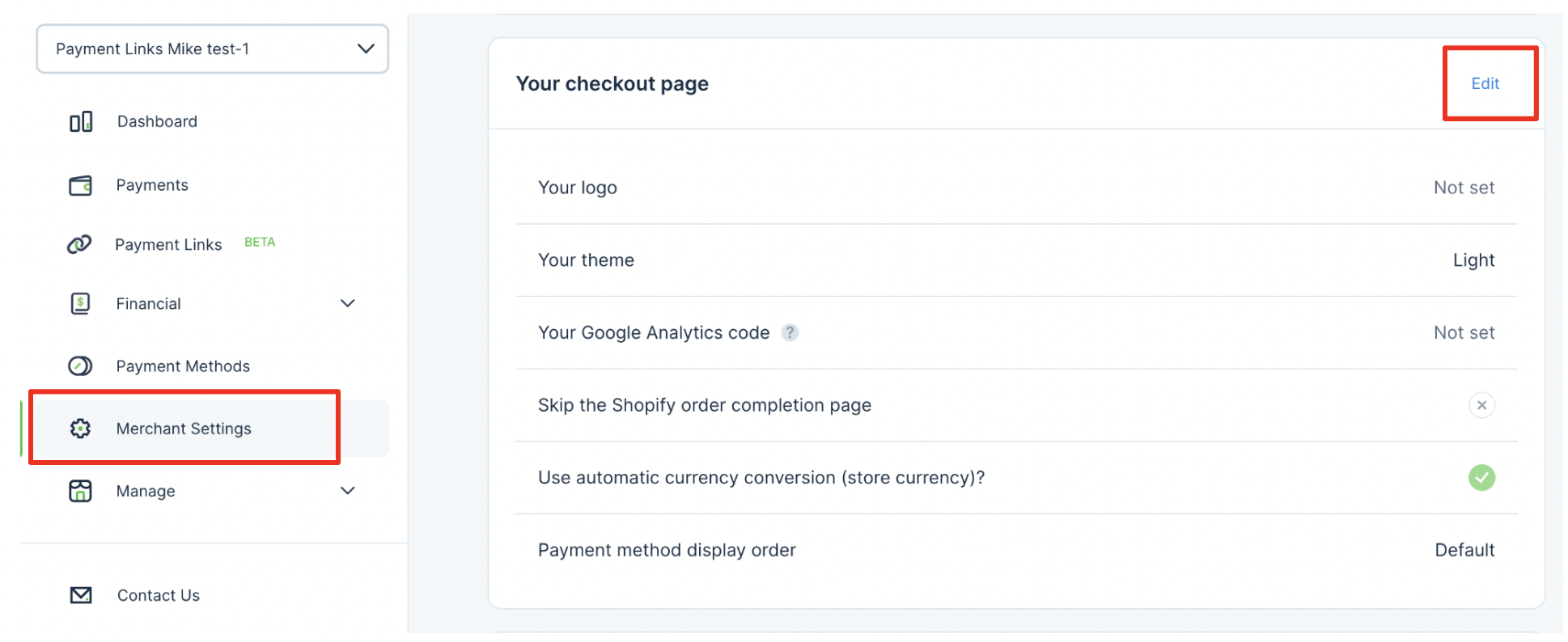
- Select "Merchant Settings" on the left-side navigation bar
- Click "Edit" button in the "Your checkout page" section
2. (recommended) Configure the email settings
If you do not have a page or a notification system to allow your customers to check their payment conditions, you can leverage KOMOJU's email notification function. Learn more
If you add attachments to Payment Links, you should at least enable the Payment Receipt emails, as they will contain links to these attachments. Otherwise, your customers won't be able to re-download the attachments post-payment.
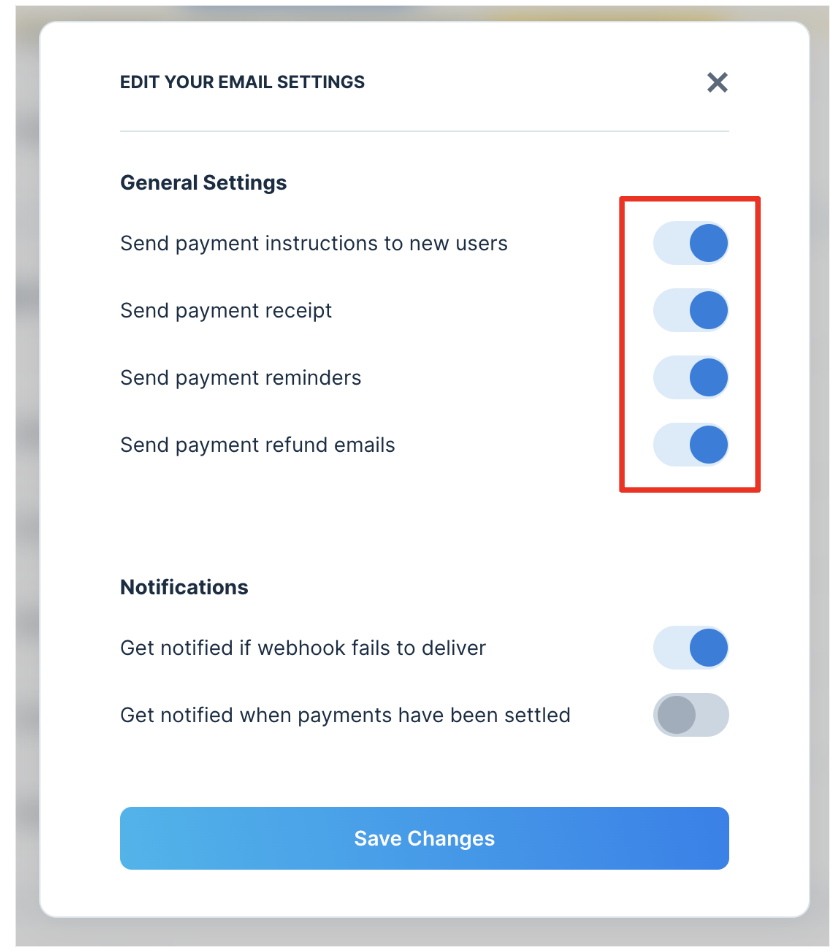
Recommended practice:
- Keep "Send payment instructions" ON
- This is essential for customers to complete checkout when using some payment methods
- Turn "Send payment receipt", "Send payment reminders" and "Send payment refund emails" ON
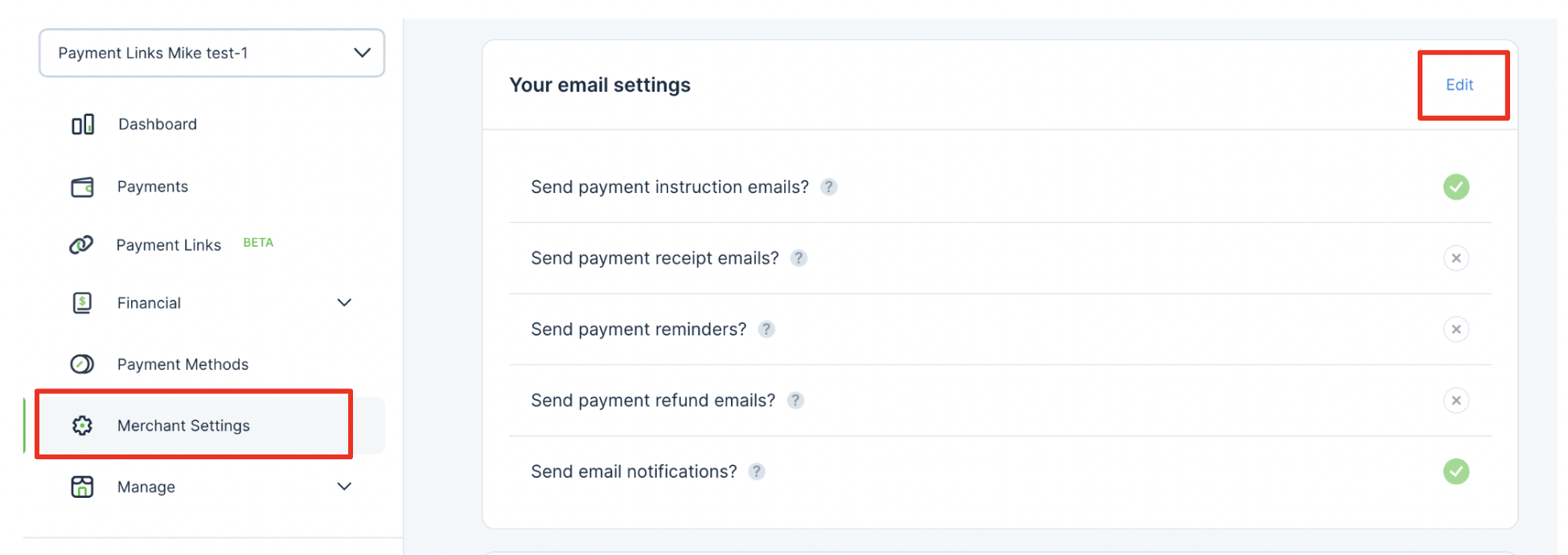
How to access these settings:
- Access the KOMOJU Merchant Dashboard
- Select "Merchant Settings" on the left-side navigation bar
- Click the "Edit" link in the "Your email settings" section
3. Create a new Payment Link
Now, you've completed the preparations and are ready to create a Payment Link for each product/service. Also, there's no upper limit regarding the number of Payment Links.
It'll provide your customers best checkout experience with a succinct title, description, and a clear image.
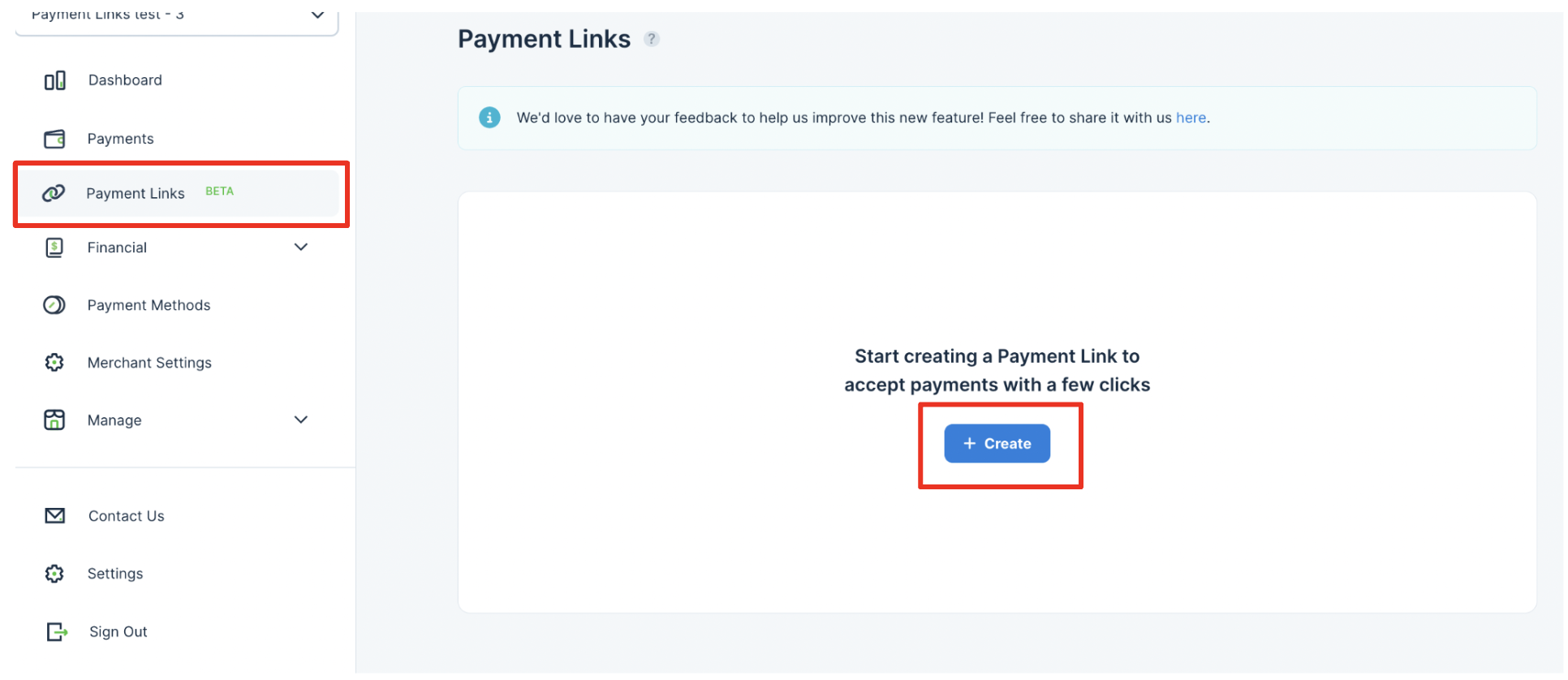
How to start creating a new Payment Link:
- Access KOMOJU Merchant Dashboard
- Click "Payment Links" on the left-side navigation bar
- Click "Create new link" button
4. Share a Payment Link
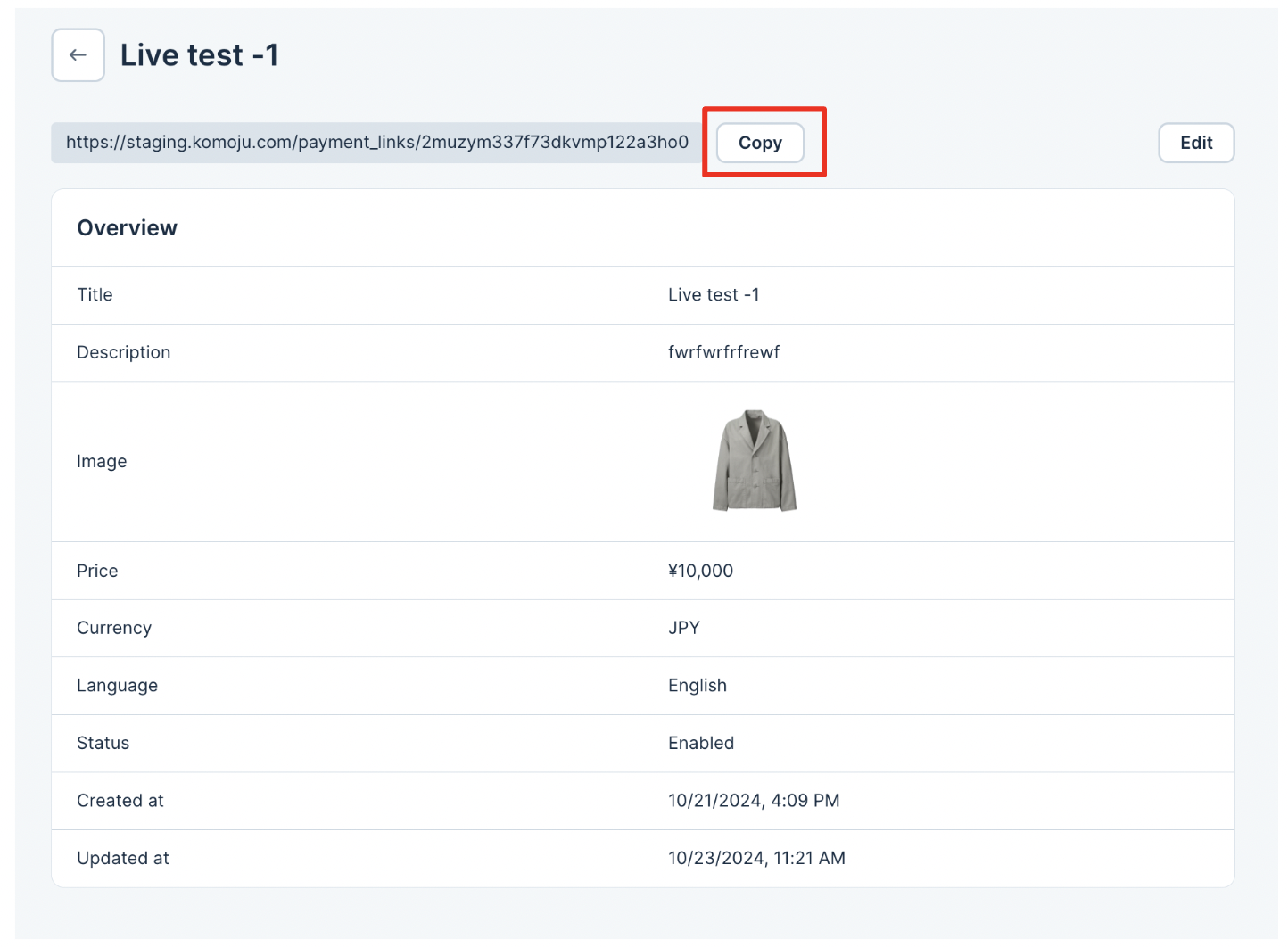
After creating a Payment Link, you'll be able to copy the Payment Link's unique URL and share it with your customers via various sales channels, such as your website, social media, digital ads, emails, text messages...etc.
How to access the URL:
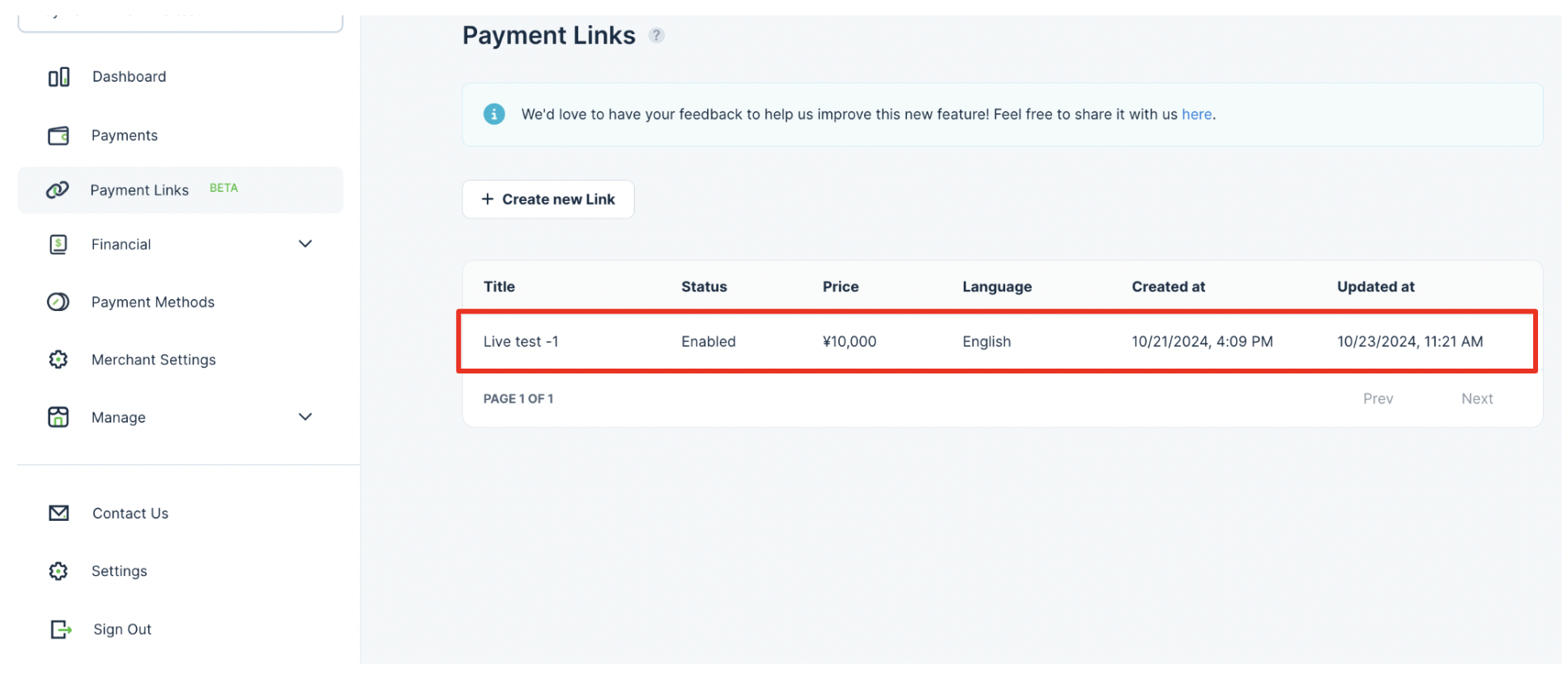
Select a Payment Link
Click the "Copy" button to retrieve the URL
5. Customers complete checkout
Once customers receive and click your link, they will be directed to KOMOJU's Hosted Page, where they can choose from various payment methods to complete the checkout.
6. Track payments created via a Payment Link
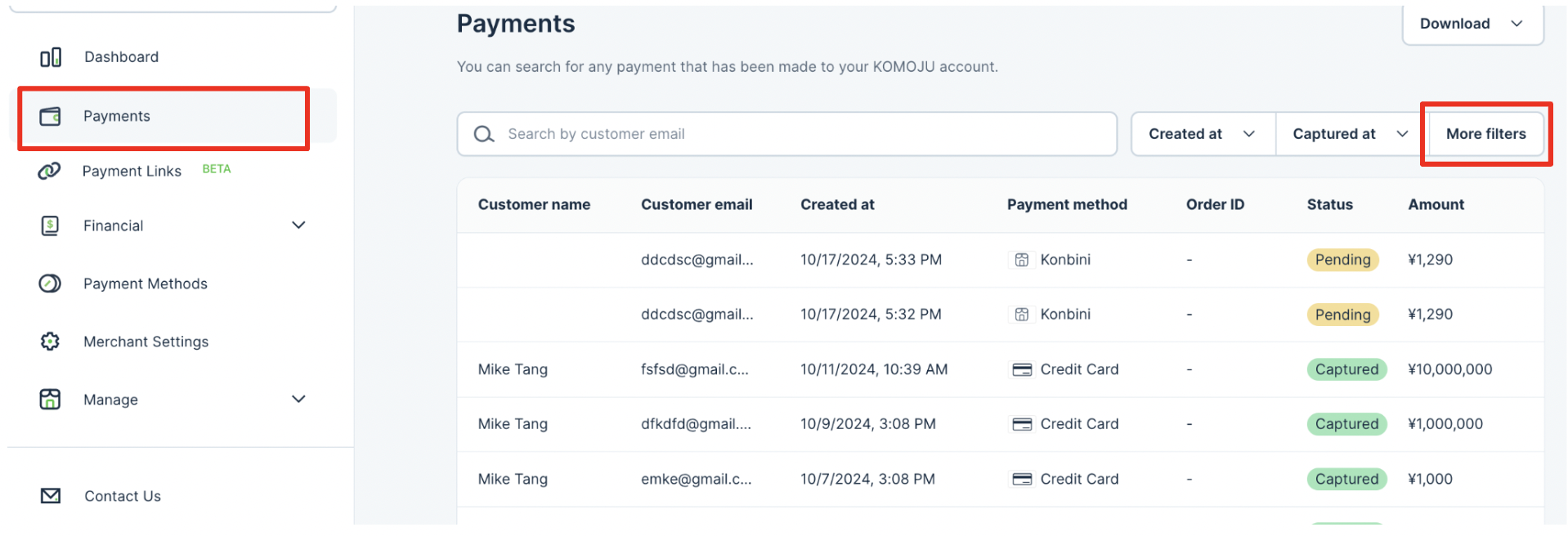
Once your customer completes checkout via KOMOJU Hosted Page, you'll be able to check the corresponding payments on the dashboard. You can filter payments by their associated Payment Link.
How to filter payments by Payment Link:
Access KOMOJU Merchant Dashboard
Select "Payments" on the left-side navigation bar
Click "More filters"
Select a Payment Link