---
title: "Hosted Fields | Customer Integration"
description: "Guide to using KOMOJU Hosted Fields in customer mode — collecting payment tokens for long-term storage and repeated use, such as subscription billing."
url: "https://docs.priv.staging.komoju-dev.tools/en/docs/integration-guides/hosted-fields-customer-integration"
source_url: "https://docs.priv.staging.komoju-dev.tools/en/docs/integration-guides/hosted-fields-customer-integration.md"
language: en
last_modified: "2026-03-25"
---
This guide shows how to use KOMOJU Fields to collect payment tokens for _long term storage and repeated use_. An example use case for this API might be to create your own subscription or bill-as-you-go system.
The process here is nearly identical to [the standard integration guide](https://docs.priv.staging.komoju-dev.tools/en/docs/integration-guides/hosted-fields-standard-integration.md). The only difference is that you create a session with `mode=customer` instead of the default payment mode (much like [the Hosted Page customer mode](https://docs.priv.staging.komoju-dev.tools/en/docs/integration-guides/hosted-page-customer-mode.md)).
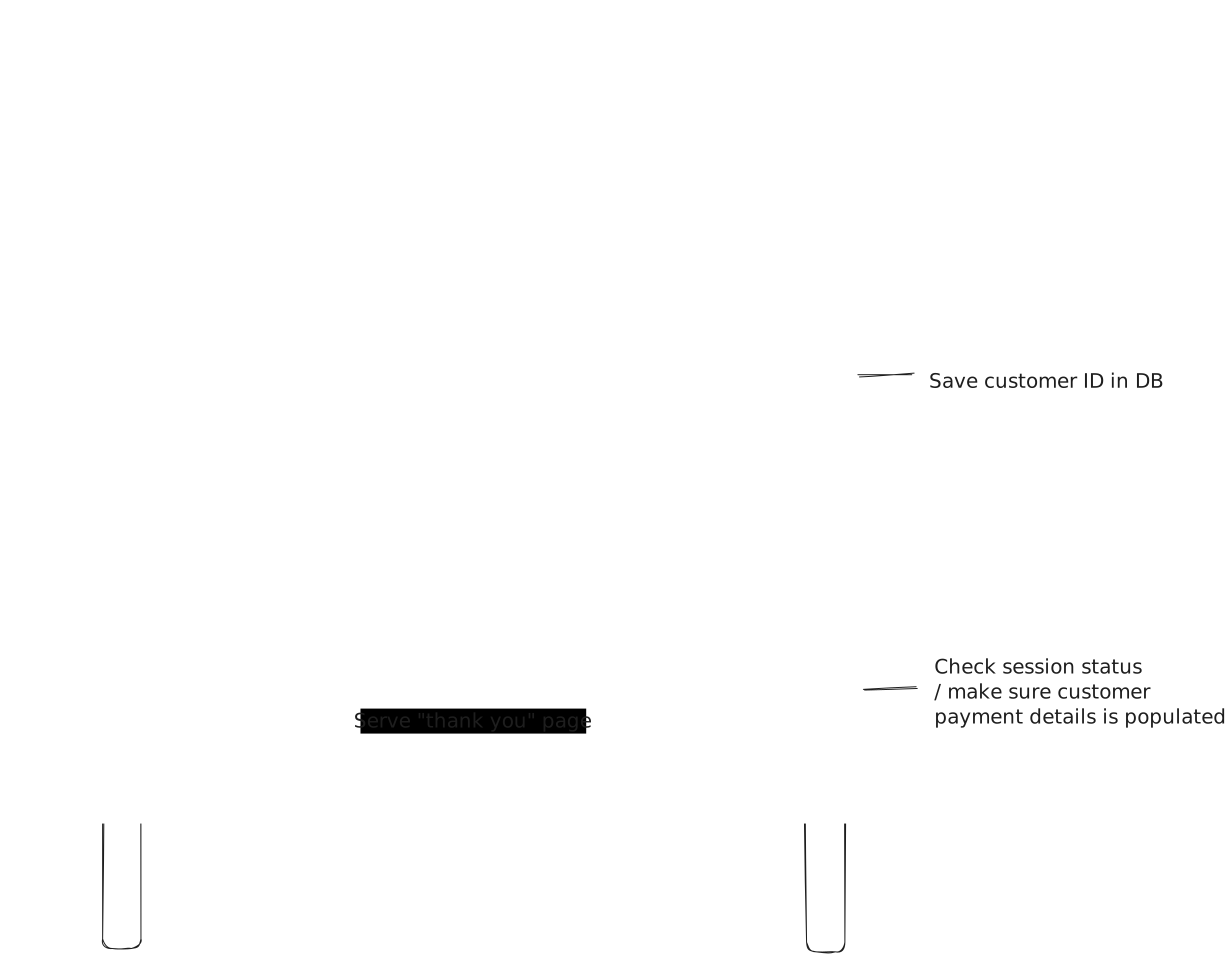
# Step 1: create a customer session on backend
Before you can show fields, you must create a session from your server. Unlike payment sessions, amount and currency is optional for customer sessions.
# Step 2: use session ID to render fields on frontend
This step is no different from payment mode.
You'll need 2 pieces of information:
1. Your session ID from step 1, and
2. Your publishable key from the KOMOJU merchant settings page.
```html
```
# Step 3: decide how you want users to submit
This step is also the same as payment mode. There are 2 ways to submit the fields:
1. Place your `` inside of a `